TV antenna installation checklist: confirm the tower, record the job, hand over a report
A practical on-site routine for antenna installers, electricians and AV professionals, with Tower Aim Installer to record each job.
Systemic Studios makes Tower Aim and Tower Aim Installer, so this guide shows each step with our app. The checklist works with any tools you already use.
Tower Aim is a one-off purchase. Installer is an optional in-app subscription.
QUICK ANSWER
The short version.
Read this, then use the steps and the checklist below.
THE SHORT ANSWER
What should a TV antenna installation checklist cover?
Three stages. Before you climb, confirm the transmitter, bearing, polarisation and terrain. On the job, record before and after readings from your own meter, take Before, During and After photos, and note what you changed. At handover, give the customer a written report. Tower Aim Installer keeps all of this in one job on your phone and turns it into a branded PDF report on site.
WHO WROTE THIS
Systemic Studios, the makers of Tower Aim
Systemic Studios makes Tower Aim and the optional Tower Aim Installer subscription, so weigh our advice knowing that. Roof work is dangerous: work at heights only with the right training, equipment and permits, follow the work health and safety rules that apply to you, and never use your phone while climbing.
FOR TRADIES
Why it matters for tradies.
A clear record of every job helps you on site, at handover and if the customer calls back.
Proof of work for callbacks and disputes
Before and after readings from your own meter, plus Before, During and After photos, show what you found and what you left. If a customer calls back, the job record is on your phone.
A professional handover
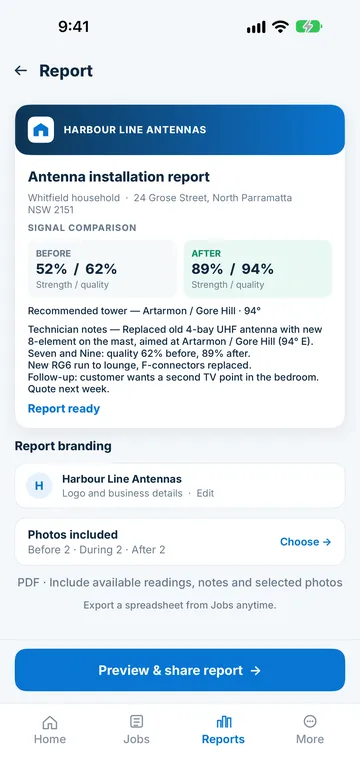
Share a client-ready PDF report on site, with your business logo and contact details, the readings, your notes and the photos you choose.
Records in one place
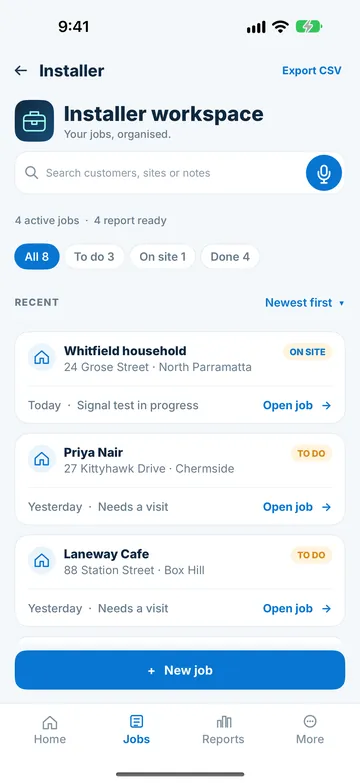
Jobs are organised by status, with customer details, the job site, the transmitter, readings, photos and notes together. Search customers, sites or notes, or export all your jobs as a spreadsheet.
Less writing up later
Dictate notes on site instead of writing them up at the end of the day. The app asks for microphone access the first time you dictate, and you can always type instead.
THE JOB, STEP BY STEP
Six steps, from the ground to the handover.
Do step 1 on the ground, before the ladder goes up.
1. Before you climb: confirm the tower, bearing, polarisation and terrain
Open Tower Aim at the site. It recommends a transmitter based on published power and distance, not a signal measurement, and shows the bearing and whether the transmitter is horizontal or vertical. Check the terrain line of sight for hills in the way; Tower Aim Installer adds finer terrain. Trees and buildings are not included, so treat it as a guide. Then create the job: it saves the transmitter selected in Tower Aim.
2. Take before readings from your meter
Before you touch anything, take readings with your own test equipment and enter the signal strength and quality, as percentages, under Before in the job's Signal check. The phone does not measure TV signal; Installer records what your meter shows.
3. Photograph the site as you go
Take Before photos of the old antenna, mount, cabling and wall plates, then During photos of the new antenna, mast and cable runs. Choose the stage first, then take the photo or pick one from your photo library.
4. Aim, then take after readings
Aim the antenna at the transmitter with the live compass or AR aiming on supported phones, matched to its polarisation. The compass shows On target when you're aimed in the right direction; then check reception on the TV, fine-tune with your meter and enter the new readings under After.
5. Add notes, or dictate them
Record what you replaced, the channels you checked and any follow-up work, such as a second TV point. Type the notes or dictate them, and add After photos of the finished install.
6. Hand over a branded PDF report on site
Tap Create report, check your business details, choose the photos to include, then tap Preview & share report and share the PDF with the customer before you leave. Mark the job done.
Tower Aim is a one-off purchase. Installer is an optional in-app subscription.
PRINTABLE CHECKLIST
The installation checklist.
Tick each check on site. The third column shows where it lives in Tower Aim.
"-" means the check is done on site, not in Tower Aim. Readings always come from your own test equipment. Print this page, or keep it open on site.
Stage
Check
In Tower Aim
Done
Before you climb
The transmitter that serves the site
Recommended transmitter, based on published power and distance, with estimated reception
☐
Before you climb
Bearing and polarisation
Bearing, and horizontal or vertical, for each transmitter
☐
Before you climb
Hills between the site and the tower
Terrain line of sight; finer terrain with Installer
☐
Before you climb
Access, weather, power lines and a spotter
-
☐
Before you start
Before readings from your own meter
Signal check: Before
☐
Before you start
Before photos: antenna, mount, cabling, wall plates
Job photos: Before
☐
During
Photos of the new antenna, mast and cable runs
Job photos: During
☐
Aim
Antenna faces the tower and matches its polarisation
Live compass, and AR aiming on supported phones
☐
After
After readings from your own meter
Signal check: After
☐
After
Every TV and set-top box retuned, channels checked
-
☐
After
After photos: the finished install and the picture on screen
No. A phone cannot measure TV signal. In Tower Aim Installer you enter before and after readings from your own test equipment, such as your signal meter. Tower Aim's reception rating is an estimate, not a measurement, so always check reception on the TV.
What is Tower Aim Installer?
An optional subscription in Tower Aim for antenna installers, electricians and AV professionals. It adds jobs organised by status, before and after readings from your own test equipment, Before, During and After photos, notes and dictation, client-ready PDF reports with your business logo and contact details, and a more detailed terrain map.
Do I need Tower Aim to use Installer?
Yes. Installer needs Tower Aim, which is a one-off purchase. Installer is an optional subscription on top of it, and Tower Aim works as normal if you don't subscribe.
What goes in the PDF report?
Your business logo and contact details, the customer and job site, the saved transmitter with its predicted reception, the before and after readings you recorded, your notes and the photos you select. You can leave readings, notes or photos out, then share, save or print the PDF from your phone.
Where are my jobs, photos and notes stored?
On your phone. Tower Aim doesn't upload your jobs, photos or notes; they stay on your phone until you share them. Photos are kept inside the app, not in your camera roll.
Can I add photos I have already taken?
Yes. Choose the stage, Before, During or After, then take a photo with the camera or choose one from your photo library.
Can I dictate job notes?
Yes. Type your notes or tap to dictate them. The app asks for microphone access the first time you dictate, and you can always type instead.
What is the finer terrain map?
A more detailed terrain map for Tower Aim's terrain line of sight, included with Installer. After you subscribe it downloads by itself on Wi-Fi. If you delete it, Tower Aim goes back to the standard terrain map. Trees and buildings are not included.
How do I cancel Installer?
In the app, tap More, then Manage subscription. You can also use your store's subscription settings: on iPhone, Settings, your name, Subscriptions; on Android, the Google Play app, then your profile icon, Payments and subscriptions, Subscriptions. You keep Installer until the end of the period you have paid for.
Is Tower Aim Installer on iPhone and Android?
Yes. Tower Aim and the Installer subscription are on the App Store for iPhone (iOS 17 or later) and on Google Play for Android phones (Android 8.0 or later). No account or sign-in is needed, and each store's subscription works on its own platform.
Tower Aim is a one-off purchase. Installer is an optional in-app subscription.
 Systemic Studios